Here is some info on the Standard Notes App.
Important Read This
-
It can be used on iPhone/iPad and computer.
-
If you want your notes to be backed up if your phone would stop working you will need to sign in.
-
It will be backed up to one of our own servers at Smithton.
- The data is encrypted before it leaves the device.
Due to the nature of this encryption,
Standard Notes cannot offer password reset functionality. If you forget your password, you will permanently lose access to your data.
Tip: Use Bitwarden Password Manager to manage and remember your password for you!
If you have forgotten your password and are still signed in, don't sign out or delete the app before contacting committee In this case we may be able to direct you how to save your data before you lose it.
Setup instructions On iPhone or iPad (iOS)
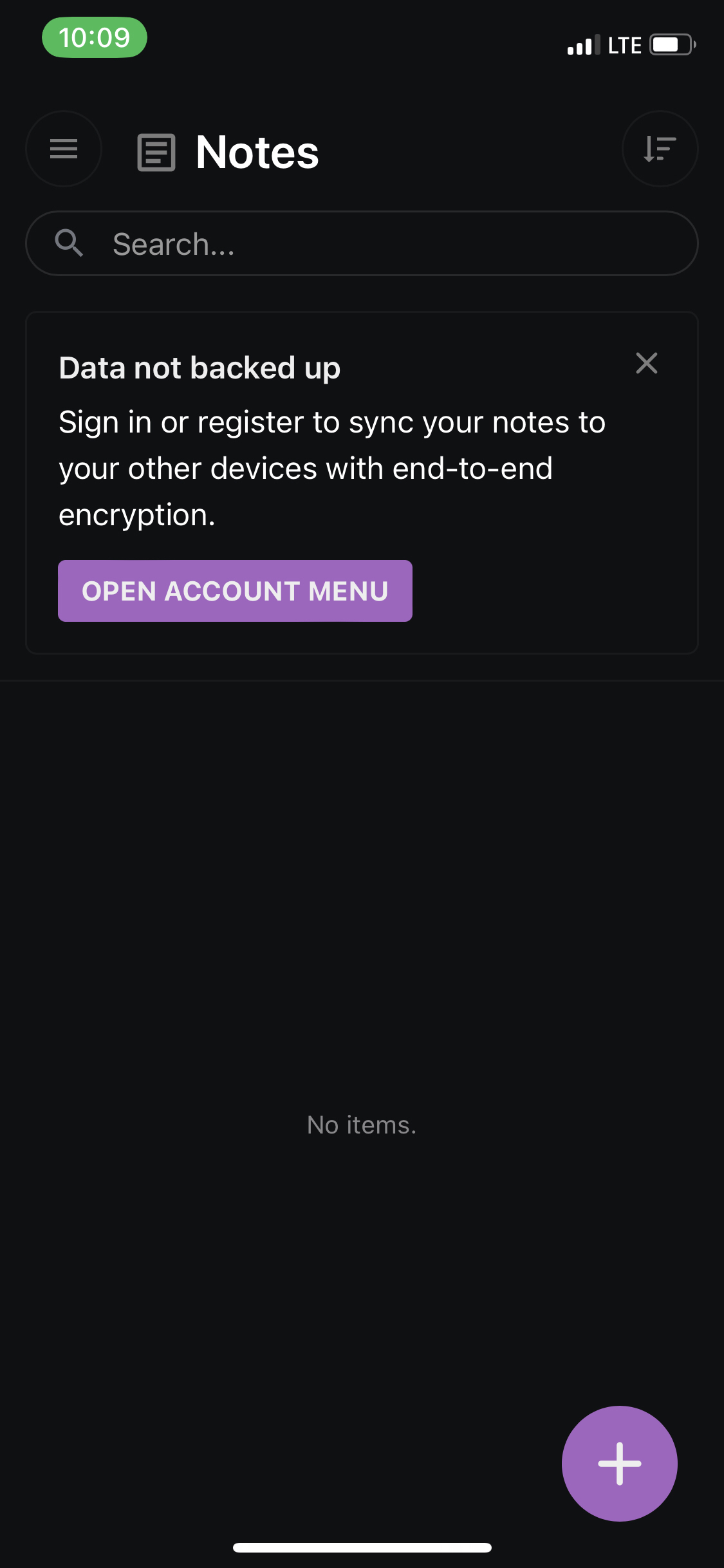
If you see 'Data Not Backed Up', Press 'OPEN ACCOUNT MENU'
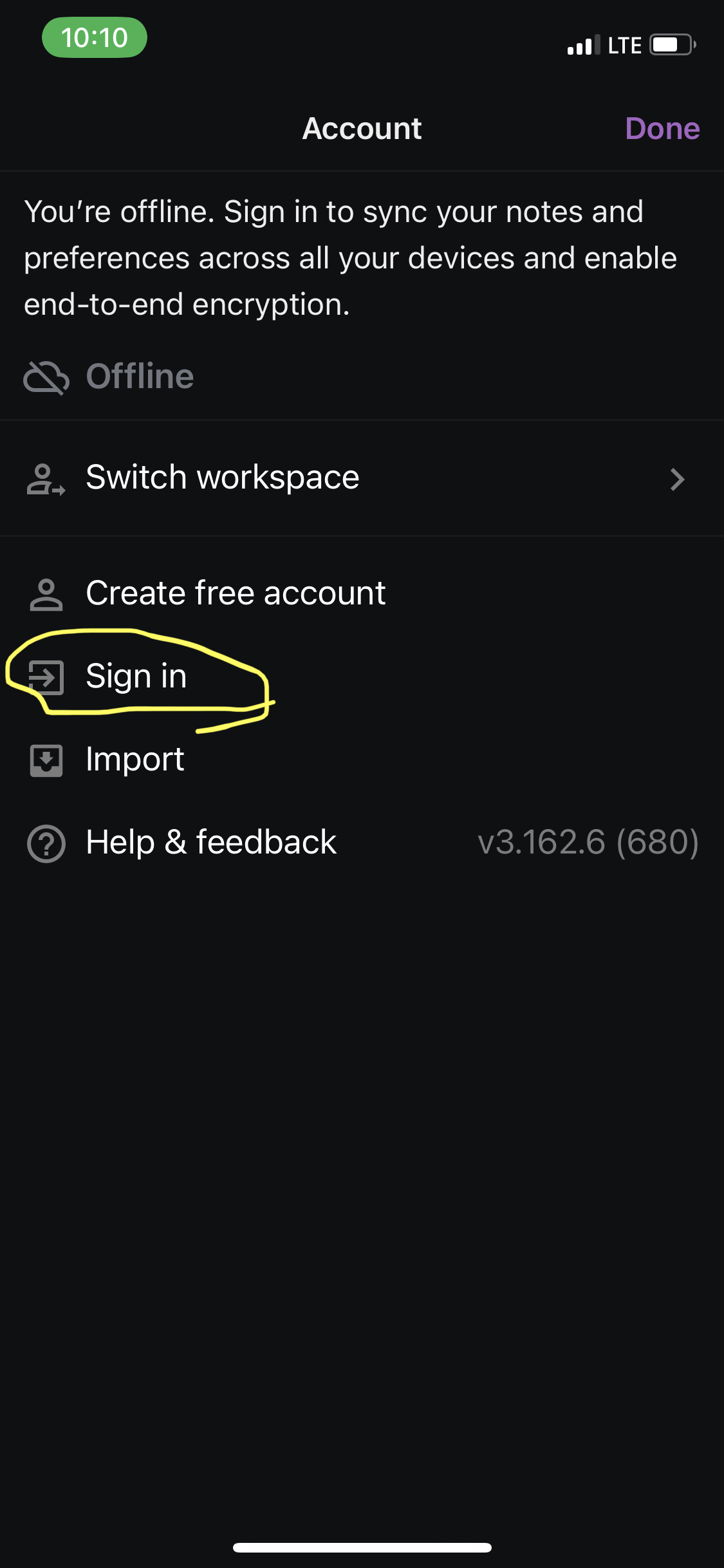
Press 'Sign In',
Press 'Advanced Options' Check the 'Custom sync server' checkbox and enter https://notes.fairfieldam.org (You should be able to long press the blue text then press on Copy Link so you can just paste this in Standard Notes)
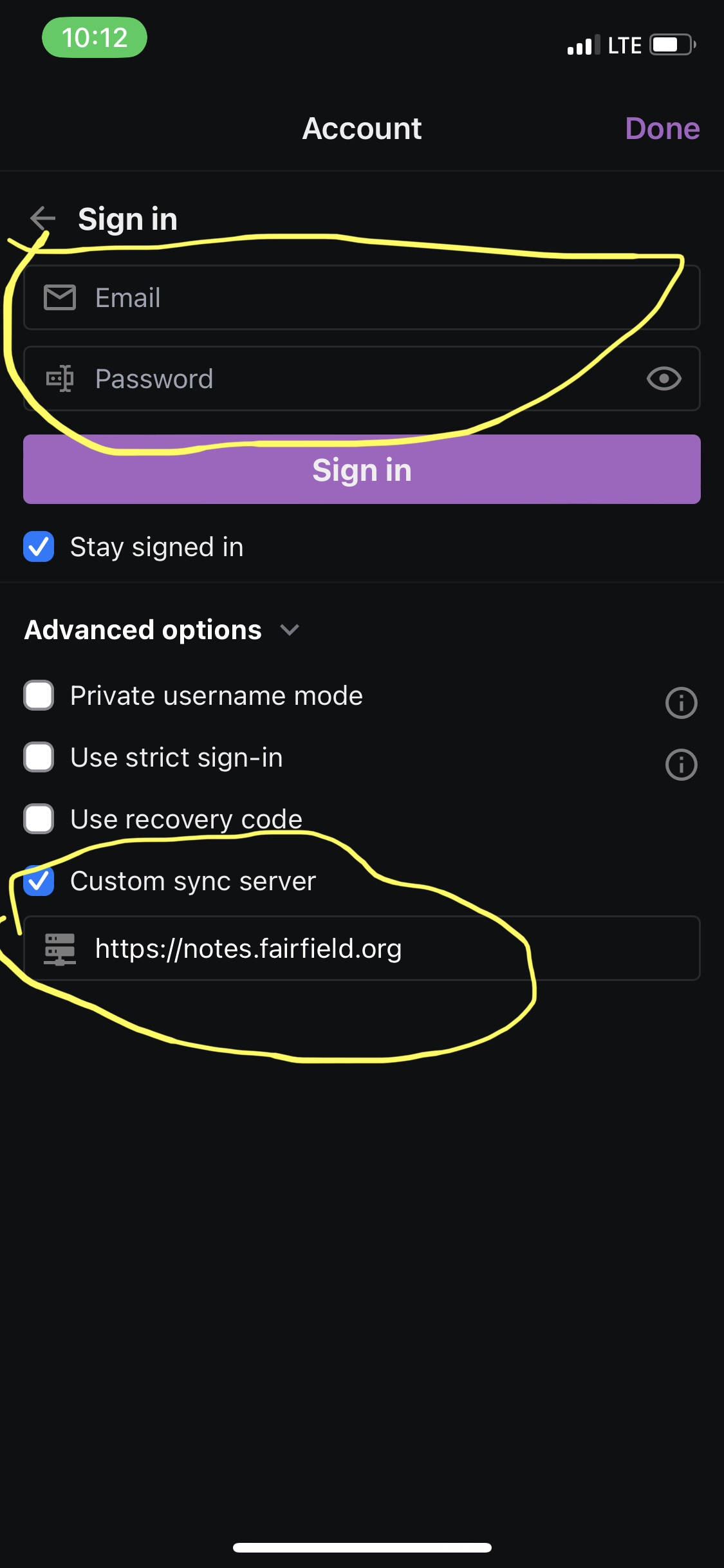
Fill in Email and Password Fields,
Press 'Sign In'
Note: If you have the 'Standard Notes - Custom' in Self Service it will have http://notes.fairfieldam.org already and you won't have to change it. As of 8/1/23 'Standard Notes - Custom' is no longer working.
Setup instructions On Computer
Click On This link (On Your Computer) to download the Program,
Install the program,
Sign in if you already have account, or Register if not,
Fill in Email and Password fields,
Click Advanced Options,
Delete https://api.standardnotes.com
and replace with
Press Sign in or Register.
This info will also be available by pressing HELP icon on your phone or going to
help.fairfieldam.org in your computer browser